Return to Previous Topic: Configure Redundancy on RMServer
Testing RM FailSafe
At this point you are ready to test RM Fail Safe. You will begin by running a few transactions on a POS station and then remove the rmserver from the network to purposely initiate the FailSafe process of making the alternate server the primary server on the network. While the network is down, you will ring more transactions and the "unmake" the alternate server and return to the rmserver being the primary computer on the network. Make sure you follow the directions closely, especially during the "unmake" process. Timing on bringing the rmserver on line and initiating the Syncovery software is critical.
Making RMServer Fail
Use the following steps to make the primary computer (rmserver) fail:
- Using RmNetMon, boot each computer on the system and wait for normal POS operations to engage. Open several orders,send some items, and confirm proper operation (i.e. items sent to remote printers).
- Open a new order (not a fast transaction) and enter several items and send them but do not exit the Order Entry screen– leave the order on the screen. Make a note of the TAB or TABLE number and also make a note or exactly what items are on the check ( or print the check if you have a printer setup) .
- Remove the network cable from the NIC on rmserver (or on the Router/Switch). The Unmake Server process will instruct you when to reconnect the cable to rmserver- do not reconnect. Keep the network cable disconnected, we will reconnect the cable after the failover process has been thoroughly tested and we are ready to perform the UNMAKE SERVER process.
- Within a few seconds, the POS Stations should display the RmNetMon dashboard.
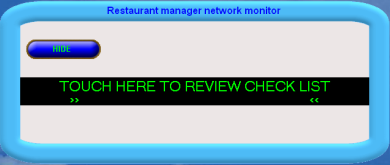
- Touch the middle of the screen to be sure the help and support screens display properly.(Note: you can customize the help and support files by editing the RTF files)
-
Be sure the MAKE SERVER option is displayed ONLY on the alternate server (i.e. STATION1).
-
Tap the "MAKE SERVER" button, tap the "yes" button in the confirmation screen.
-
Within 60 seconds, the system should be up and running again, with the POS stations reloading automatically with no intervention.
-
You should be able to recall the Tab or Table you were working on at the time you unplugged the cable.The order should be exactly as it was with all items that were added just prior to pulling the plug.
-
Be sure all other tables that were open are there and have the items on them as they were prior to initiating the failover.
-
Add a few new items and “Send‟ items to prep printers. Confirm the items printed are the prep are printers. Also test the credit card system.
Restoring Normal Operations: Unmake Server
When the primary server (rmserver) is operational again, the original configuration will need to be restored. This is done by the “Unmake Server” option. Usually this operation is done by the dealer because it requires more user input and is more involved, but with adequate training most anyone can do it.
NOTE: In most cases it is suggested to allow the system to run in Failover Mode until the end of a shift/business day when the system can be restored with minimal interruption in operations.
- Do not reconnect the rmserver to the network until told to do so (step 12 below). Make sure Syncovery or any RM applications (i.e. poslink) are NOT running on the rmserver computer.
- First, exit RMPOS on EVERY POS station
- From the Alternate Server, select the "Show" button on the right side of RmNetMon,
- Tap the "Touch Here to Review Checklist" in the middle of the screen to display the Help screen.
- Tap the “Unmake Server” button to start the “Unmake Server Wizard” .
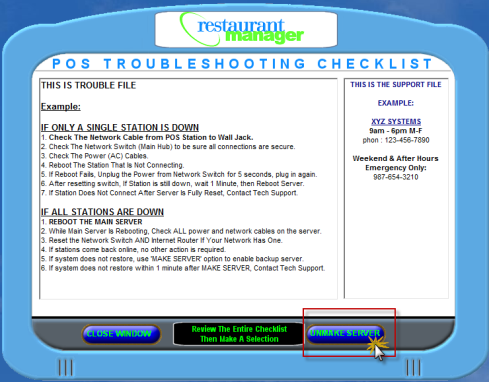
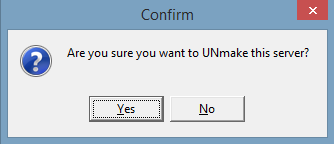
- Tap the "Yes" button in the Confirmation box.
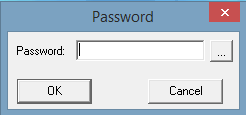
- Enter the password when prompted. This is the same "password" configured in the RmNetMon Setup form. Use the ellipsis button the access the on screen keyboard .
- The Unmake wizard will display the sequence of events that will occur during the UnMake Server process. NOTE: You do NOT do these steps manually – it is simply informing you what will happen next. Tap the "Next" button to continue.
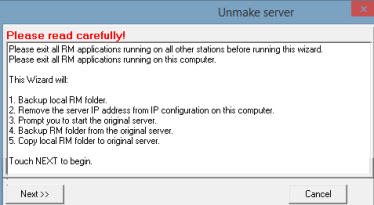
RmNetMon will guide you through the Unmake process and provide tips in each screen. You will need to press the buttons in the middle of the screen to initiate a step and use the "Next" button to move to the next step.
- Stop RM POS applications
- Create a local backup of all rmwin folder data: Click the "Backup Data" button in middle of screen. Tap "OK" button when prompted.
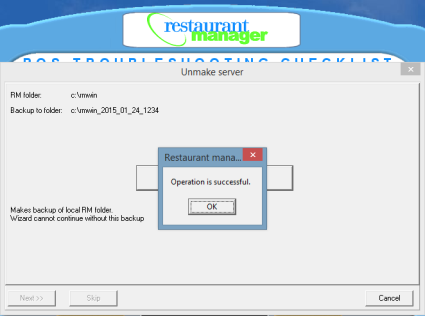
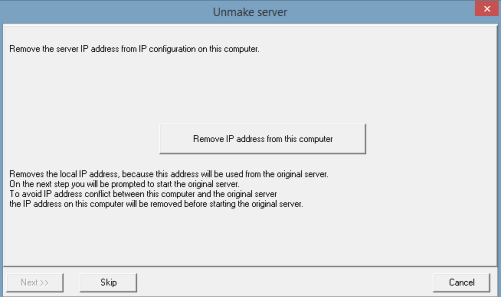
- Change the local IP address. Tap the "Remove IP address from this computer" button.
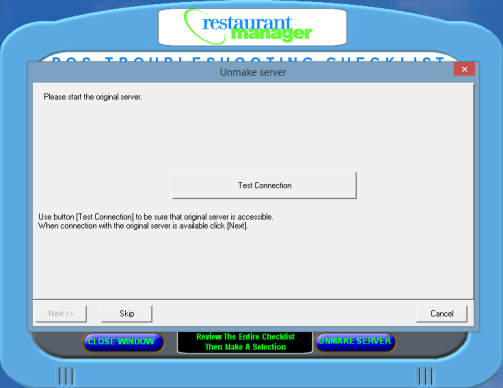
- At this point you can reconnect the rmserver computer to the network (make sure Syncovery is not running). Tap the "Test Connection" button.
- Create a backup copy of the remote POS folder from original server for safety. Tap the "Back up original server's RM Folder" button.
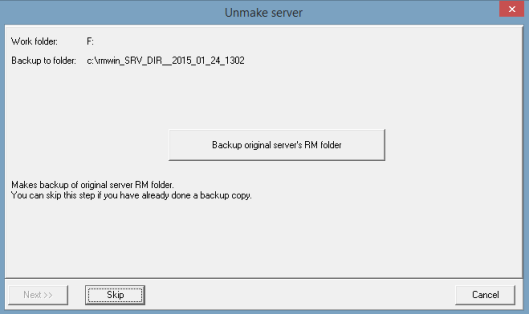
- Copy the data from local backup copy to override the original server POS folder. Tap the "Restore data from this computer to original server" button.

- Remove "server mode" option for the Alternate Server computer. Tap the "Finish" button.
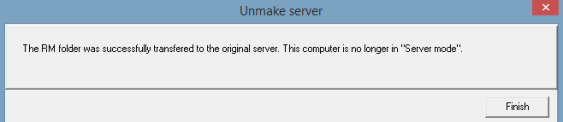
- Reboot the primary server (rmserver) and finally reboot all POS stations.- the Alternate server will not recognize the rmserver until both are rebooted.
- Verify Syncovery is running on the rmserver computer.