The following is a brief description of RMKiosk functionality and some of the setting options.
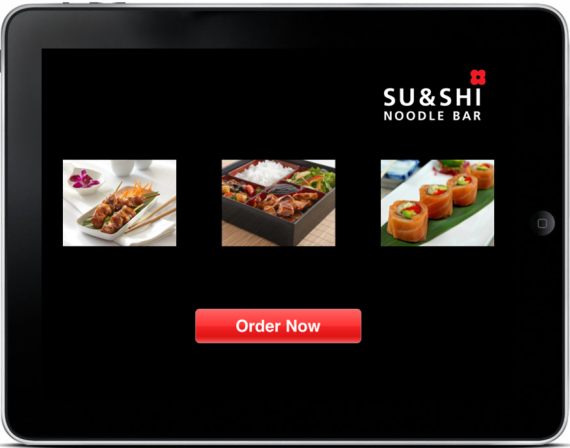
Logo can be customized: Restaurant Manager BackOffice Module à Setup à General à Kiosk Settings
Tap ‘"Order Now’' to begin ordering sequence.
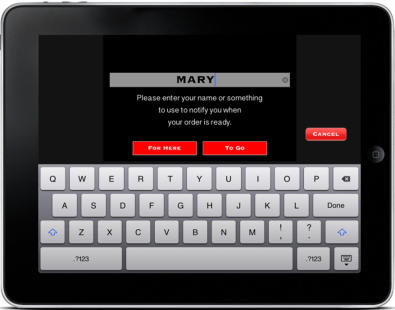
The tutorial video will appear after leaving the Data Entry screen.You may view the tutorial (about 46 seconds) or skip.
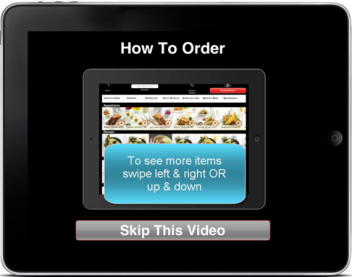
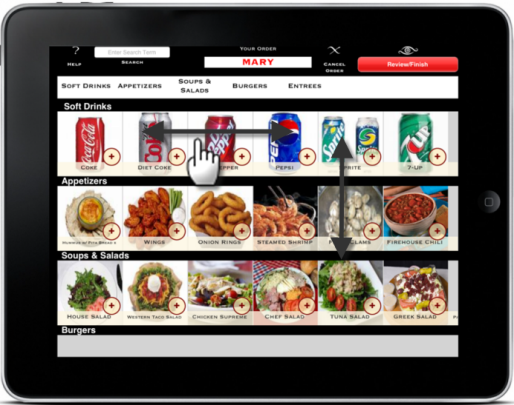
When the menu appears, ‘flick’ a category left & right to display more items. You can flick up and down to display more menu groups. You can also select a menu group directly from the Menu Bar at the top and the selected group will scroll into place.
Ordering Menu Items
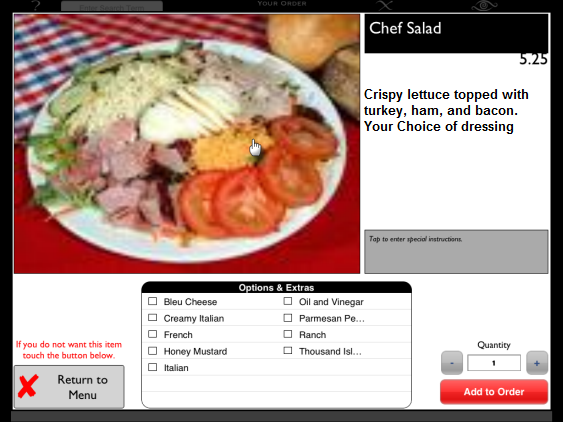
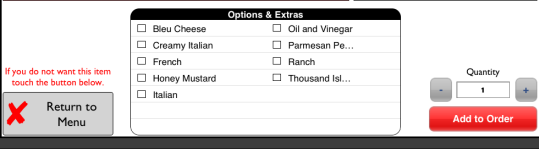
Detailed Item Order - touch the item picture to see the hi-resolution image, price, detailed description, and area for entering ‘Special Instructions’, quantity control, and ‘Add to Order’ and ‘Return to Menu’ buttons.
*Note, the detailed description is defined in the RM BackOffice Menu Setup form for each item under the ‘Online Ordering & Kiosk’ tab under ‘Item Web Description’ You may want to also include nutritional info and ‘search keywords’ as well as a general description.
Note: using the detailed item description, you can define specific items with keywords such as ‘Spicy’ or ‘Thai’ or ‘Gluten Free’ etc. The search command will search both the item name and the detailed item description. All matches will be displayed on the screen. To revert back to the normal menu display and clear the search mode, select ‘Show All’ located just to the right of the Search field.
The Help icon, top left of the main screen has an option to view the tutorial video again or to view the About screen which will display copyright and version info.
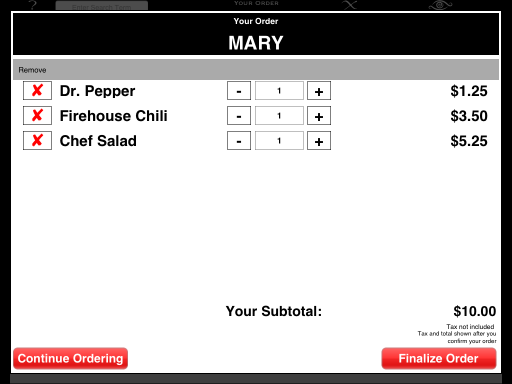
This icon will display the contents of the current order.
From this screen you may choose to accept as-is and Finalize, or you may delete items by touching the item row under the Remove column, change quantities using the "Plus/Minus buttons, or return to the ordering screen by tapping "Continue Ordering".
Note: Modifiers cannot be altered in the Review / Finish screen. To change modifiers you must remove the item and reorder with the correct modifiers.
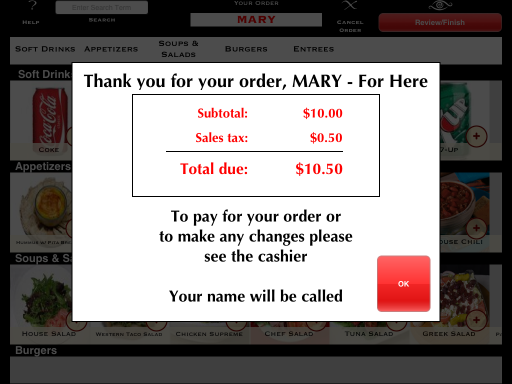
When finalizing an order, a new screen will appear with the total due The message under the total due can be customized in the Restaurant Manager BackOffice Module à Setup à General à Kiosk Settings. Tapping the "OK" button will send the order to the prep printer and return the RMKiosk to the default screen (Order Now).
The Cancel button in the Order Screen will discard any items ordered and return to the default screen.
If a customer starts an order and there has been no activity for 30 seconds, a message will be displayed prompting the user to "Continue working" or "Cancel". If no input occurs within 15 seconds of the message being displayed, the order will automatically cancel and RMKiosk will return to the default screen. 30 seconds is the default setting. and is configurable in the RMKiosk Settings on the iPad: iPad App screen à Settings à RMkiosk à Timeout.
.
Next Topic- "Setting Up RMKiosk "