Getting Started
This section of the document will guide you through the initial steps of setting up Duet for the first time. All setup is done through the Duet Back Office. Once you receive your log in credential for Duet, you will log into the system and enter the basic pa
Log Into Duet Back Office
To setup Duet you will login to the Duet management application at https://www.rmduet.com. You should already have been assigned a user account and received an email with a link on setting up your user name and password. If you have not received that link please contact your Duet Reseller, or if you are a Duet reseller contact ASI Technical via Help Desk in Dealer Services
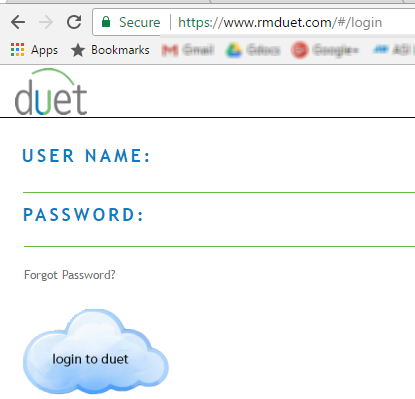
If you have setup your credentials but cannot login you can use the Forgot Password link on the main login page. Enter your email address, click "Search" and then select the location from the drop down list. Click Submit. (Note: if you click Submit your old password will be reset and you MUST create a new one before you can login to Duet, even if you remember your old password. You may use the same password when you reset it if you wish, although it is generally not suggested.
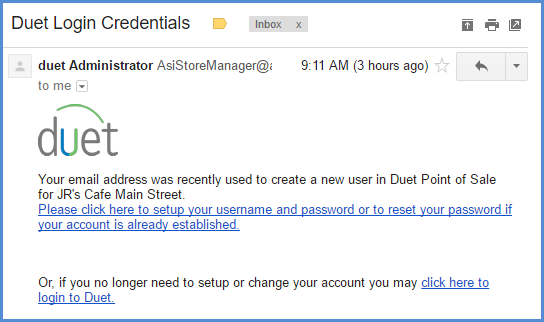
Check your email, the password reset link will arrive generally in less than 2 minutes. Check your spam/junk folder if you do not see it in your Inbox. The email you receive will be similar to the one pictured after successfully registering for Duet.
At this point you will need to create credentials to log into the Duet Back Office interface by doing the following:
- Click the link on the email
- Type in a new password
- Confirm the new password
- Return to the email and click "Click here to log into Duet
- Enter your new user name and password you just created
Navigating the Duet Back Office
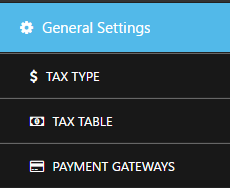
In this documentation, the title of each section will be followed by the back office navigation links you will select, shown in brackets.
For example [General > Tax Table] indicates you will select "General" from the left side navigation menu, and then from the sub-menu "Tax Table" as shown in the image here.
General Settings
The General Setting Menu contains several setup forms that allow you to customize the operation of your system. Settings in the different setup forms of the General Settings menu allow you to customize order entry, settlement and other operations that are common to all RM Duet modes. They are categorized under the following sub-headings which are covered in more detail in different sections of this document. You may access this form from the back office menu list
The setup forms under the General Settings menu are:
 Tax Type Setup Form
(Use to create individual taxes to system)
Tax Table Setup Form
(Use to create tax tables. Tax tables are a grouping of individual taxes that can be applied by revenue center.)
Payment Setup Form
(Use to create payment methods like cash or credit card.)
Revenue Center
(Use to create revenue centers that will attribute sales to different areas of the restaurant. The revenue center form is also used to control prompts, tax tables, gratuities, service charges, and guest check printing. Main Dining Room, Patio, and Bar are examples of revenue centers where you might want to track sales. Similar You may want to charge different service charge rates er revenue center or prompt for a reference on a bar tab. Revenue centers will be attached to different ordering modes such as Table Service or Delivery Sales.)
Void/Comp Reason Setup Form
( Use to create reason why menu items are being removed from the order.)
Discounts Setup Form
(Use this form to create discount methods that will apply to menu items ordered. Discounts can be set to applied as a percentage or dollar amount.)
Enterprise Setup Form
(This form is used blah blah blah)
Devices Setup Form
(Use this form to add iPad devices to your system.)
Location Setup Form
(This is a catch all form that contains fields that control credit card processing, tablet behavior, printings options, end of day closing options, and the restaurants address, phone, and name fields used on guest checks and reports. )
Day Parts Setup Form
(Use this form to define sales periods through the day. Example: you might want to define sales periods such as breakfast, lunch, dinner, and happy hour. These period will be used for reporting purposes.)
Shift Notes Form
( Use this for to display message on the tablets default screen.)
Order Modes Setup Form
(Use this form to add or remove orders modes and their default revenue centers. Order modes may be used independently or integrated with one another to process orders and track employee timekeeping in a variety of different businesses scenarios. Examples of order modes are Table Service, Quick Service, Bar Tabs, Delivery, etc.)